PORSCHE PLAY iOS App: How to Install on iPhone and iPad in the Philippines
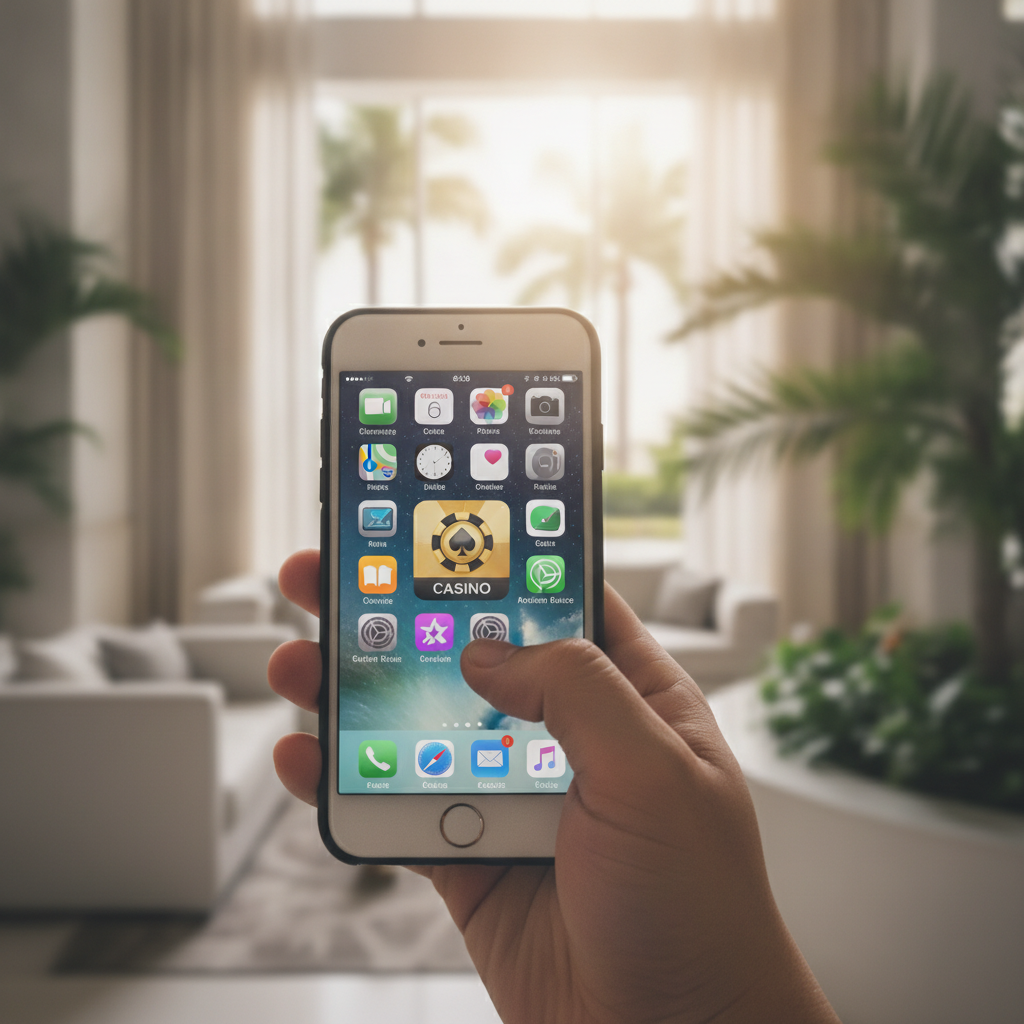
How to Download PORSCHE PLAY on iOS Devices
Filipino players looking to install PORSCHE PLAY on an iPhone or iPad face a different process than Android users. Because many online casinos in the Philippines do not publish native apps on the App Store, PORSCHE PLAY typically offers a web-based Progressive Web App (PWA) that works on iOS Safari without requiring an App Store download.
To get started, open Safari on your iPhone or iPad and navigate to the official PORSCHE PLAY website. Log in to your existing account or use the registration link if you're new. Once you're on the homepage, look for a prompt or banner inviting you to "Add to Home Screen" or "Install App."
If you don't see an automatic prompt, tap the Share icon at the bottom of Safari (the square with an upward arrow), then scroll down and select Add to Home Screen. Give the shortcut a name—"PORSCHE PLAY" works fine—and tap Add. This places an icon on your home screen that launches the full casino interface in a standalone browser window, behaving much like a native app.
The PWA method is the most common route for PORSCHE PLAY iOS users in the Philippines. It requires no App Store account region changes, works on any iPhone running iOS 12 or later, and updates automatically each time you launch it because it pulls the latest version from the web server.
Installing from App Store vs Web-Based PWA Options
App Store availability: At the time of writing, PORSCHE PLAY does not maintain a downloadable native app in the Philippine App Store. If you search "PORSCHE PLAY" in the App Store, you will not find an official listing. This is standard practice for many offshore or locally licensed online casinos serving the Philippines, as Apple's App Store policies restrict real-money gambling apps in certain jurisdictions.
Progressive Web App (PWA): The recommended installation method is the PWA route described above. A PWA delivers nearly all the functionality of a native app—push notifications (if you grant permission), offline caching of static assets, and a full-screen interface—without the App Store gatekeeping. PORSCHE PLAY's PWA is optimized for iOS Safari and works seamlessly on both iPhone and iPad screen sizes.
Advantages of the PWA:
- No need to sideload or use third-party app stores
- Instant access to the latest features and game library
- Smaller storage footprint; the app shell is cached but content streams live
- No manual update downloads; refresh happens behind the scenes
Disadvantages:
- Relies on Safari; you cannot use Chrome or another browser for the PWA install on iOS
- Push notifications may be less reliable than a native app, depending on your iOS version
- Some players prefer the familiarity and perceived security of an App Store listing
If PORSCHE PLAY ever releases a native iOS app in the future, it will appear in the Philippine App Store with full ratings, reviews, and a developer profile. Until then, the PWA is the official and safest option for iPhone and iPad users.
Troubleshooting 'App Not Available in Your Region' Issues
Because PORSCHE PLAY does not currently offer a native App Store app, you should not encounter the "app not available in your region" error when following the PWA method. However, some players mistakenly try to download unrelated or copycat apps from other regions, leading to confusion.
If you see a region error in the App Store:
- Verify you're searching for the correct app. PORSCHE PLAY does not have an official App Store presence for the Philippines. Any listing you find may be a different brand or a fraudulent clone.
- Do not change your Apple ID region. Switching your App Store country can lock you out of subscriptions, break iCloud features, and void active payment methods. It is unnecessary for PORSCHE PLAY.
- Return to the official website. Use Safari to visit the legitimate PORSCHE PLAY domain and install the PWA. If you're unsure of the correct URL, check the platform's social media channels or customer support for the verified link.
Common mistakes:
- Downloading a third-party app from an overseas App Store that claims to be PORSCHE PLAY but is not affiliated
- Installing an APK wrapper or "helper" app that requires TestFlight or developer profiles; PORSCHE PLAY does not distribute iOS apps this way
- Clicking on links in unsolicited messages or emails that lead to phishing sites masquerading as the official app
If you receive a message claiming you must download an iOS app file (.ipa) directly or trust an enterprise certificate, stop immediately. PORSCHE PLAY does not distribute iOS software outside the PWA model, and sideloading unsigned apps exposes your device to security risks.
What to do if the PWA won't install:
- Ensure you're using Safari, not Chrome or another browser
- Update iOS to the latest version available for your device (Settings → General → Software Update)
- Clear Safari cache (Settings → Safari → Clear History and Website Data) and try again
- Disable any content blockers or VPN extensions that might interfere with the Add to Home Screen function
- Restart your iPhone or iPad and revisit the PORSCHE PLAY site in Safari
If problems persist, contact PORSCHE PLAY customer support via live chat or the helpdesk email listed on the website. Provide your iOS version number and device model so the team can offer specific guidance.
Updating and Managing the App on iOS
One of the advantages of the PWA approach is that updates happen automatically. Every time you tap the PORSCHE PLAY icon on your home screen, Safari fetches the latest assets from the server. You won't see update prompts or download progress bars; the refresh occurs silently in the background.
Checking for updates manually: There is no formal "check for update" button in a PWA. If you suspect you're seeing an old version of the interface—perhaps a new game or cashout option is missing—try these steps:
- Close the PORSCHE PLAY PWA completely by swiping up from the bottom of the screen (or double-tapping the home button on older iPhones) and flicking the PORSCHE PLAY window off the top.
- Reopen the app icon. This forces a fresh load of the web content.
- If the issue remains, delete the home screen icon, clear Safari's cache (Settings → Safari → Clear History and Website Data), and re-add the PWA from the official site.
Managing storage: Because a PWA caches only essential files—logos, stylesheets, lightweight scripts—it uses far less space than a full native app. You can view and clear the cached data by going to Settings → Safari → Advanced → Website Data, finding the PORSCHE PLAY domain, and swiping left to delete. Note that clearing this data logs you out and removes any saved preferences, so you'll need to log in again.
Notifications: If you've granted PORSCHE PLAY permission to send push notifications, you can manage these under Settings → Notifications. Scroll to Safari, then look for the PORSCHE PLAY domain. Toggle Allow Notifications on or off, and adjust banners, sounds, and badge icons as you prefer. Keep in mind that PWA notifications on iOS are still evolving; depending on your iOS version, you may not receive push alerts for bonuses or withdrawal updates. In that case, check your account dashboard regularly or enable email and SMS alerts through your PORSCHE PLAY profile settings.
Uninstalling the PWA: To remove PORSCHE PLAY from your home screen, press and hold the app icon until the quick actions menu appears, then tap Remove App → Delete. This deletes only the shortcut; your account and balance remain intact on PORSCHE PLAY's servers. You can re-add the icon anytime by visiting the site in Safari and repeating the Add to Home Screen steps.
Switching devices: If you get a new iPhone or iPad, simply open Safari on the new device, navigate to PORSCHE PLAY, log in, and add the PWA to the home screen. Your account, betting history, and wallet balance sync from the server, so you'll pick up exactly where you left off. Make sure you remember your login credentials or have them saved in iCloud Keychain.
Age Restriction and Responsible Gambling Reminder
PORSCHE PLAY is strictly 21 years and older. Players must be of legal age under Philippine law to register, deposit, and wager. The platform may request government-issued ID during account verification to confirm your age and identity.
Responsible gambling: Set deposit limits through your GCash or Maya wallet settings, and use PORSCHE PLAY's session timers or self-exclusion tools if you need a break. If you or someone you know is struggling with gambling, reach out to a local support organization. Gambling should remain entertainment, never a way to solve financial problems or chase losses.
By following the steps above, iPhone and iPad users in the Philippines can quickly install and manage the PORSCHE PLAY PWA, enjoy smooth access to slots, live dealer tables, and sports betting, and move money in and out via GCash, Maya, InstaPay, or PESONet—all without needing an App Store download.